The SPS/Access Manager is designed to control, set and monitor all user access to directories, files and programs. The software allows the system administrator to easily control VOS ACLs/DCLs from a single focal point and therefore reduce the risk of unauthorized access to data and enhance system security.
Access Control Manager will:
ACL/DCL
For a detailed overview on access control, refer to your VOS documentation on system security. Access Control Lists / Default Control Lists are set as follows:
For Directories
| Null | The user has no access to the directory. |
| status | The user can read the attributes of objects in the directory. |
| Modify | The user can change the attributes of objects in the directory and can create objects in, and delete objects from the directory. The user can also change the directory's access control list. |
For Files:
| null | The user has no access to the file. |
| execute | If the file is an executable program module, then the user can execute it. |
| read | The user can read the file and execute it if it is an executable program module. |
| write | The user can read and change the contents of the file and execute it if it is an executable program module. |
Configuration
A set of ACM/DCLs applied to one or more Objects. SysAdmin maintains the Configuration in the set of SPS ACM script files. All changes to the configuration are temporary and the Configuration becomes active (VOS level) when the user executes propagate_access requests.
----------------------------------- sps_acm ---------------------------------- -request_line: -quit: no -lams_input_q: %softmark#d03>SPS>alert_manager>logs>sps_lams_input_q |
sps_acm.pm [-request_line] [-quit] [-lams_input_q]
Any valid SPS/ACM request. Using the -request_line parameter in conjunction with the -quit switch will allow the administrator to execute the program in the background as a sub-process.
-quit
When set, the program will execute the command specified under the -request_line and then quit and return to the VOS command level.
-lams_input_q
The relative or rull path-name of the AlertManager Input queue. This optional interface allows ACM to send aleter message to AlertManager.
| add_object |
Adds an Object to the Configuration.
object A logical name of the Object. -path A relative or full path name of the Object. -clone_from_object You can clone a new Object from an exiting Object that is used as a template. All ACL/DCL definitions are copied and applied to the new object. This is a very useful and a time saving command. -propagate Whenever a new object is added, if it's a dir with a "propagate" then
| |
| report_access |
Scans a given directory structure for Deviations. It compares the definitions between loaded ACM scripts and VOS' ACL/DCL lists.
object A logical name of Object(s) to be tested. -path A relative or full path name. Either object or -path must be specified. -user If used, ACM will show only entries that include the given user-name. -subdirs Walk down the directory structure and compare all sub-directories as well. -show_all Include all entries in the report even if they match the configuration and require no changes. -dirs_only If used, ACM will show only directory entries. It will not compare access of the files. -output_path Direct all output to a file. A list of Email nick-names. | |
| display_access |
Scans a given directory structure for Deviations. It compares the definitions between loaded ACM scripts and VOS' ACL/DCL lists.
object A logical name of Object(s) to be tested. -path A relative or full path name. Either object or -path must be specified. -user If used, ACM will show only entries that include the given user-name. -vos When set, the program will display VOS' acl/dcl lists. -brief When set, the program will only display the object name and its paht-name without the acl/dcl lists. -output_path Direct all output to a file.
| |
| give_access |
Adds or resets user's access rights to one ore more Objects. The name of the Object can be a star name, allowing the administrator to perform global changes.
access A valid access permission -clone_from_vos A name of a template file. You can create a template file in ACM directory and assign desired ACLs/DCLS to it. When used in -clone_from_vos; ACM will apply these ACLs/DCLs to the object. object A logical name of Object(s) to be tested. -path A relative or full path name. Either object or -path must be specified. -user If used, ACM will show only entries that include the given user-name. -ask When set, the program will prompt for user confirmation. -propagate When set, the object will inherit access of its parent. Examples:
give_access modify PROD -user Joe.DEV | |
| give_default_access |
Adds or resets user's default access rights to one or more Objects. The command works only on directories. The name of the Object can be a star name, allowing the administrator to perform global changes.
Examples:
give_default_access write PROD -user Joe.DEV | |
| propagate_access |
Applies the Configuration to the VOS directory structure. The command requires that all desired scripts are loaded first and that the user has modify access to the directory structure.
object A logical name of Object. -path A relative or full path name. Either object or -path must be specified. -subdirs Walk down the directory structure and propagate ACL lists to all sub-directories as well. Examples: propagate_access PROD | |
| script |
Loads and execute the script file. Once the script file has finished executing, all the defined objects and their permissions are in ACM session memory.
-script A name of a valid script file. -no_abort If set, ACM will continue to run the script even if there are errors/warnings. -check_exists If set, ACM will add Objects even if they don't yet exists on the system. -echo If set, ACM will echo to the screen the requests being processed. Example: script main_ACM_script
| |
| set_options |
Sets program's general settings.
Examples: set_options -sort path | |
| quit | Quits the SPS/ACM shell and returns to VOS' command level. |
Where is the database? ACM dynamically builds an efficient in-memory database as you execute your Scripts. You can say that your Scripts directory is in fact your ACM database; only in a readable format.
Here are the basic steps:
Sample Script
The following is a sample of an SPS/ACM Script File. Multiple script file can be maintained and used for different purposes (giving_access, removing, propagating etc.)
&   Defining all the objects.

add_object PROD                   -path (home_dir)>SPS_NEW>PROD
add_object PROD_SOURCE  -path (home_dir)>SPS_NEW>PROD>source_library
add_object SPS_COMMAND  &+
                 -path (home_dir)>SPS_NEW>PROD>command_library>sps.pm

display_access

&   Give ACL/DCL
give_access                   modify  *           -user *.SysAdmin    -no_ask
give_default_access           write   *           -user *.SysAdmin    -no_ask
give_access                   status  *           -user *.*           -no_ask
give_default_access           read    *           -user *.*           -no_ask
give_access                   modify  *           -user Soft.*        -no_ask
give_default_access           write   *           -user Soft.*        -no_ask
give_access                   write   SPS_COMMAND -user Joe_Smith.*

&   Apply the configuration to PROD
propagate_access PROD
How to write Scripts
One of the most important features of ACM is the ability to run nested scripts (script-A --> script-B --> script-B etc.). This allows you to build small scripts that will define common access-rights and templates and then reuse these scripts. Sort of a subroutine in programming language. Once you set up one "structure" of acls you can just "call" it by making a script-call. Please take the time to plan small scripts which will be the foundation of your configuration. With some thought, your scripts could be very simple and easy to maintain.
 Note: It is convenient to use two sessions. You would use the first session to edit the script and the second one to run it.
The SPS/ACM Log File
The following is as a sample of the daily audit-trail log file.
12:31:04 Soft.guests: Started Session
12:31:04 Soft.guests: Added Object: [PROD] %nyc2#guests>Soft>SPS_NEW>PROD
12:31:04 Soft.guests: Added Object: [PROD_SOURCE] #guests>Soft>SPS_NEW>PROD>source
12:31:04 Soft.guests: Added Object: [SPS_COMMAND] #guests>Soft>SPS_NEW>PROD>sps.pm
12:31:21 Soft.guests: Gave *.SysAdmin [modify] access to PROD.
12:31:21 Soft.guests: Gave *.SysAdmin [modify] access to PROD_SOURCE.
12:31:21 Soft.guests: Gave *.SysAdmin [write] default access to PROD.
12:31:21 Soft.guests: Gave *.SysAdmin [write] default access to PROD_SOURCE.
12:31:21 Soft.guests: Gave *.* [status] access to PROD.
12:31:21 Soft.guests: Gave *.* [status] access to PROD_SOURCE.
12:31:21 Soft.guests: Gave *.* [read] default access to PROD.
12:31:21 Soft.guests: Gave *.* [read] default access to PROD_SOURCE.
12:31:21 Soft.guests: Gave Soft.* [modify] access to PROD.
12:31:21 Soft.guests: Gave Soft.* [modify] access to PROD_SOURCE.
12:31:21 Soft.guests: Gave Soft.* [write] default access to PROD.
12:31:21 Soft.guests: Gave Soft.* [write] default access to PROD_SOURCE.
12:31:21 Soft.guests: Gave Joe_Smith.* [write] access to SPS_COMMAND.
12:31:26 Soft.guests: Propagating access to %nyc2#guests>Soft>SPS_NEW>PROD
12:31:43 Soft.guests: Stopped Session
The reg_admin.pm program
Purpose
The command reg_admin.pm initiates an system's user requestration interactive session. Using the -request_line
and -quit options, the user can also start the program in the background using the VOS start_process command.CRT Form
-------------------------------- registration_admin ------------------------------ -request_line: -quit: no -lams_input_q: %softmark#d03>SPS>alert_manager>logs>sps_lams_input_q -two_user_apply: yes -require_alias: yes -require_reference: yes |
reg_admin.pm  [-request_line]  [-quit]  [-lams_input_q] [-two_user_apply]
    		    [-require_alias] [-require_reference]
Any valid SPS/ACM request. Using the -request_line parameter in conjunction with the -quit switch will allow the administrator to execute the program in the background as a sub-process.
-quit
When set, the program will execute the command specified under the -request_line and then quit and return to the VOS command level.
-lams_input_q
The relative or rull path-name of the AlertManager Input queue. This optional interface allows ACM to send aleter message to AlertManager.
-two_user_apply
The program changes the VOS registration database in two steps. First, changes are made to a temporary holding area and then they applied all at once using the apply_change request. By default, and for added security, the program requires that two individuals will be involved in the process. One creates new user profile or changes existing ones and the second individual reviews, approves and applies the changes to the VOS permanent databases. Any user can apply changes made only by a different individual - i.e. no person can apply his own changes.
-require_alias
This switch may be used to require an Alias for all registered users.
-require_reference
An optional field used to track registration changes. When set, the user will be reqruired to provide a site-specific reference for every update.
Definitions - The Registration Database
| Temporary Registration | A temporary holding file for pending changes to VOS registration database. All changes are written in sequence to the Temporary Registration. These pending changes will be applied to VOS when the apply_changes is executed. |
| Person |
The person name of this user, which must be unique to the system. Valid characters for Name are numbers, upper- and lowercase letters, and a single underline (_). The value in this field must have the form person_name, or simply, name. The maximum length of Name is 32 characters. While a combination of upper- and lowercase letters, as well as the special characters $, @, ~, [, ], {, }, \, |, -, ^, `, :, /, ", and + may be specified for the person name, the field itself is case insensitive.
The Name value is also the name of the user's default home directory in each of the groups in which the user is registered. Note that you do not need to create a default home directory in the group directory for each of the user's groups. However, if the user will be logging in to the default home directory, be sure that links exist from group directories not containing the default home directory to the user's actual home directory. These links will not exist if you create the default home directory manually or if you register the user in an additional group at a later date. |
| Alias |
An alternate (and usually shorter) form of the value specified in the Name field. This alias must be unique within the system and can be used in place of the person name in the login command. The alias must be unique in the entire database; it cannot match a person name or any other alias in the system. Valid characters for Alias are numbers, upper- and lowercase letters, underlines (_), and the special characters $, @, ~, [, ], {, }, \, |, -, ^, `, :, /, ", and +. The maximum length of Alias is 32 characters. If you do not specify a value for Alias, the user must use his or her full person name to log in. |
| Password |
The password that the user must supply each time he or she logs in. The user can change the assigned password after login, unless the value in the No Password Change field is yes. The length and format of the password are validated according to the minimum length and format defined by the login_admin command.
|
| Groups |
One or more groups in which the user is to be registered. The user must be registered in at least one group. The group name, which must be unique within the system, is case insensitive. Note, however, that the group name supplied at login is case sensitive. The first Groups field is required and is the user's default group: if the user is registered in more than one group and logs in without a group name, the operating system automatically logs the user into the group named in the first Groups field. Note that if you need to create a new group, you must first create a new group directory. |
| Home-Dir |
The path name of the user's home directory. Enter a path name in this field to specify a home directory other than the default home directory. Specify any of the following:
|
| Subsystems |
The subsystems that the user is allowed to enter. Normally, a user enters a subsystem with the -subsystem argument to the login command. However, if the Must Use Subsystem value is yes, the operating system logs the user directly into the subsystem named in the first Subsystems field. For each subsystem named, the user must have a startup command macro that will place him or her into that subsystem. The name of the command macro must be subsystem_name_start_up.cm. |
| Language | The name of the language the user is registered to use by default. This value determines which language-specific message files and date/time parameters the user's process uses. If this field is empty, the user's process uses the system's default language. |
| Privileged |
Permits the user to log in as privileged by giving the -privileged argument to the login command. The default is no.
|
| Default Privileged | Logs the user in as privileged unless he or she gives the -no_privileged argument with the login command. The default is no. This value must be no if the value in the Privileged field is no. |
| No Password Change | Restricts the user from changing a password with the login command. The default is no. |
| Permanent Password | Prevents the user's password from expiring. The password expiration time can be set with the login_admin command. The default is no. |
| Must Have Start Up | Requires a start_up.cm file in the user's home directory before the user can log in. The default is no. |
| Must Use Subsystem | Limits the user to the subsystems named in the Subsystems fields. If the user logs in without specifying a subsystem in the -subsystem argument of the login command, the operating system automatically places his or her process in the subsystem named in the first Subsystems field. The default is no. |
| No Home Dir Change | Restricts the user from specifying another home directory by using the login command's -home_dir argument. The user may only use the default home directory as a home directory. If the user's registration record contains a home directory path name, the operating system uses that value; otherwise, it creates the default home directory path name from the user's default module name, login group name, and person name. If the user tries to give an unacceptable path name, the operating system denies the user access. The default is no. |
| Priority | The priority that this user's processes have by default. The range is from 0 through 9 (lowest through highest). For most users, assign priorities 3, 4, 5, or 6. See VOS System Administration: Administering and Customizing a System (R281) for information about the meaning of the priority levels. The default value is 0, the lowest priority. |
| Max Priority | The maximum priority this user can request. The range is from 0 through 9 (lowest through highest). The default value is 0, the lowest priority. Privileged users can explicitly set a process to run at a higher priority level. |
| Max Processes | A value between 0 and 255 that represents the maximum number of processes, excluding batch processes, that the user can create at one time on a module. However, the actual number of processes that one user can create is 1023. A value of 0 (the default) indicates that the user can create any number of processes. |
| Default Module | The name of a module. This value is used to create the default home directory path name. Refer to the description of the Home Dir field for more information. |
| add_user |
Adds a user to Temporaray Registration.
| |
| review_changes |
Lists all pending changes from the Temporary Registraion area.
| |
| apply_changes |
Applys all pending changes from the Temporary Registraion to VOS registration database. Note that you may use star-names for person name.
| |
| copy_user |
Creates a new User id based on a definition of any existing user. This is an easy way to create new user records based on predefined templates.
| |
| delete_user |
Removes a user to Temporaray Registration.
| |
| discard_changes |
Removes all pending changes from the Temporaray Registration. Note that you may use star-names for person name.
| |
| list_users |
Lists all registered users.
-person A star name that allows to pick an choose selected users. -group A star name that allows to pick an choose selected Groups. -privileged Set to yes to list only privileged users. -terminated Set to yes to list only terminated users accounts. -verbose Using the verbose switch produces a complete report of the user's record.. Example:
1. Administrator.SysAdmin [privileged]
2. andrew.Guest [terminated]
3. c_service.SysAdmin [privileged] [terminated]
4. Eran_Mertens.SysAdmin [privileged]
5. ftptest.ftptest
6. Guest.Guest
7. ia32.SysAdmin [privileged]
8. Whitecap.Periscope [privileged]
9. Milap_Shah.SysAdmin [privileged]
10. Soft.SysAdmin [privileged]
11. SPS_TEST.Guest [privileged]
12. Tim_Gamble.Guest [privileged] [terminated]
Example:
Registration Admin>> list_users -person soft -verbose

Registration information for soft
   Account status:           Active
   Password type:            VOS
   Home dir:                 %softmark#d03>Soft
   Switches:
          Privileged
          Default privileged
   Groups:                   SysAdmin
   Subsystems:
   Last password change:     06-12-05
   Priority:                 5
   Max priority:             8
   Max processes:            0
   Min password len:         1
   Max bad logins:           0
   Login violations:         0
| |
| registration_report |
Creates an HTML-formatted report of the Registration Database
-person A star name that allows to pick an choose selected users. -group A star name that allows to pick an choose selected Groups. -privileged Set to yes to list only privileged users, no for non-privileged. -terminated Set to yes to list only terminated accounts, no for active accounts. -external Set to yes to list only external (RADIUS) accounts, no for VOS accounts. -pass_expires_before Set a date to list only users whose password expire prior the given date. -pass_expires_after Set a date to list only users whose password expire after the given date. -from ... -to A selection criteria that defines a time window. Any user that was logged in during this range will be incdluded in the report. -show_last The database stores up to the last 50 sessions. You may use this argumet to specify the maximum number of sessions you wish to report. -out_for The number of days during which the user(s) were not logged into the system. This argument can for example, list all users that have not used the system in the last XX days. -output_path The path name of the report file. You may choose to send the report via your E-Mail Server to selected users. Simply enter their email addresses as you would in your Email program.
| |
| update_user |
Updates and resets an existing Registration Record.
| |
| reset_user_password |
Resets the user's password without making any other changes.
|
-------------------------------------- SPS/FIM -------------------------------------- -name: -brief: no -report: %softmark#d03>SPS>access_contrl_manager>logs>File_Integrity.html -email: |
sps_fim.pm [-name] [-brief] [-report] [-email]
A name of a starname of matching FIM configuration records. By default the program processes all entries in the configuration table (sps_fim.table).
-brief
When set, the program will report only files that have been changed since the last check. If set to "no" all files will be reported.
-report
A full/relative pathname of the report file. A report is created every time you run the program. Previous versions of reports are stored with a date/time stamp.
A list of Email nick-names.
| name | A nick name or the record. |
| path | A full/relative path name or starname of the files you wish to processes. |
| check_crc | By default all monitored files scanned and a CRC code is calculated and saved. For cetrain files you may choose not to run the CRC check. |
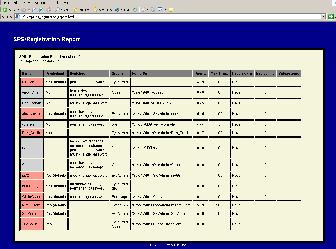
File Integrity Report

Click to enlarge.
