SPS provides an on-line graphic representation of system's resource consumption. SPS captures and calculates system utilization data based on configurable combinations of groups, users and processes. The product is user-friendly, its reports and graphs are easy to interpret.
The reporting facility allows the user to examine historical data in On-line Playback Mode and to download report files into spreadsheet applications. SPS also features a system wide Analyze System Server process that reduces the overhead associated with the analyze_system subsystem and allows users to extract periodically and log any set of benchmark values.
SPS produces alert signals and automatically executes corrective commands when any of the monitored meters exceed the allowed thresholds.
You can meet these objectives with SPS/Performance:
Introduction
The SPS/Performance Monitors address all aspects of system performance: capacity planning, current and historical data reporting, quick on-line troubleshooting and system-level alert handling. SPS monitors help identify which process or application is "killing" the system and resolve potential problems ahead of time to allow more accurate capacity planning.
Features
list_users
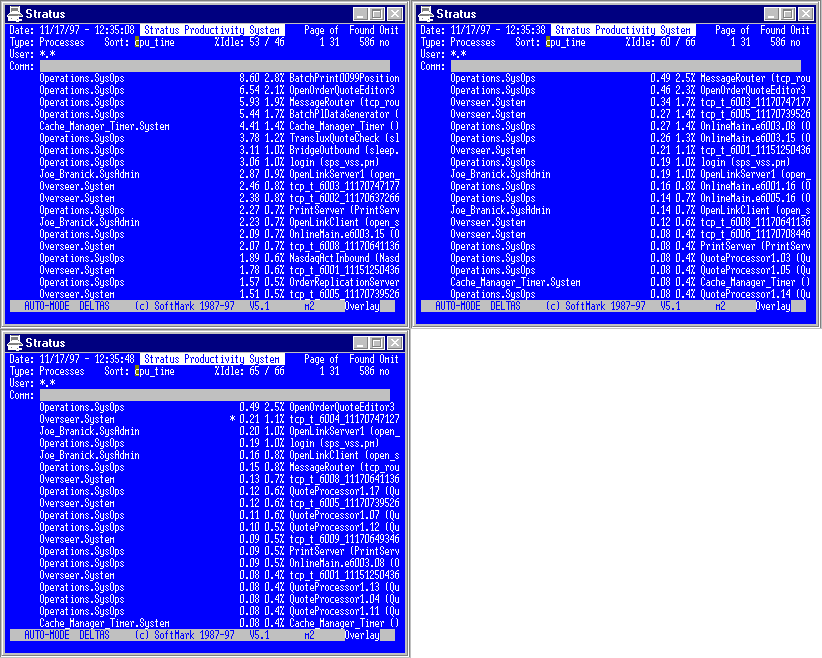
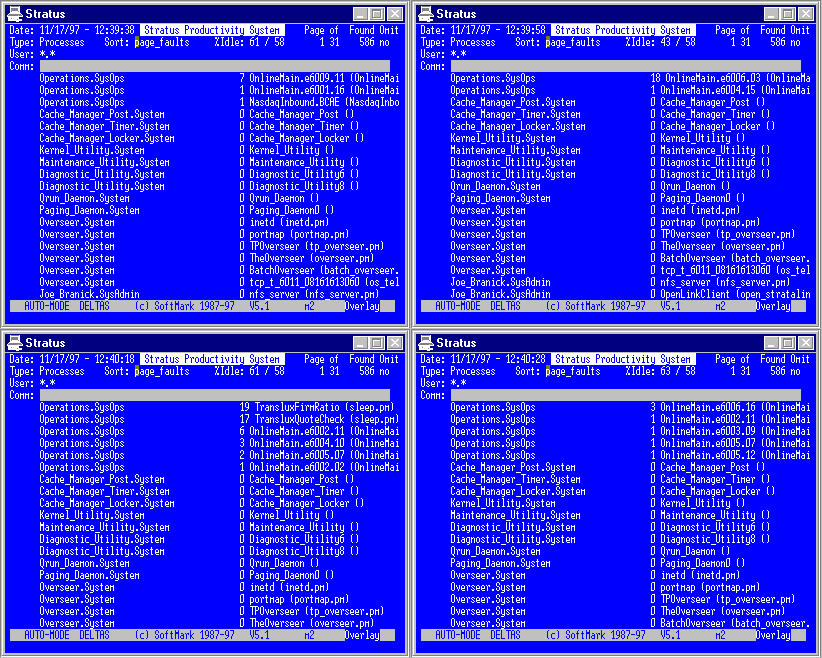
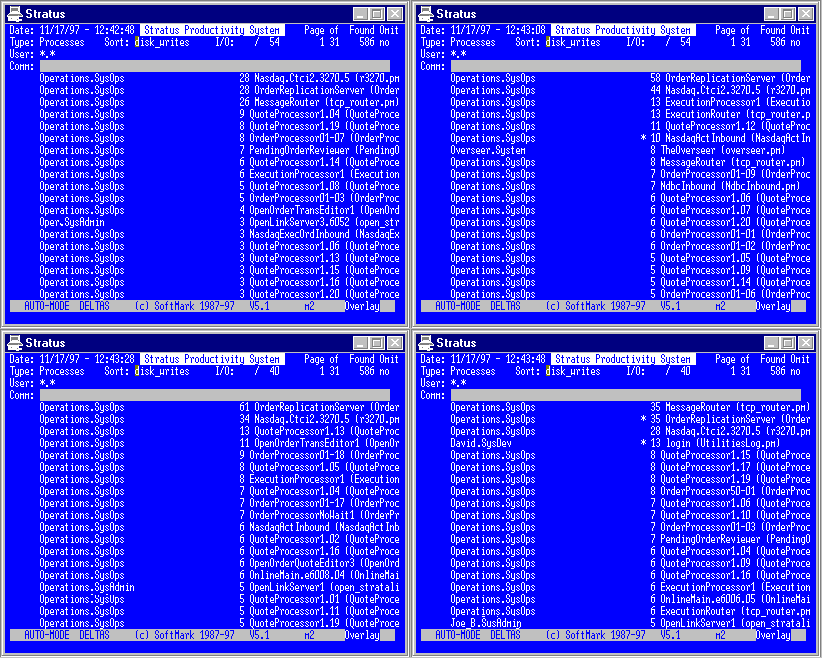
The sps_lui.cm command is is an interactive tool that is used to monitor running processes. The key feature is that the program sorts all running processes by any performance meter - cpu, page-faults, I/O rate.List-Users sorted by CPU Usage:
List-Users sorted by Page-Faults
List-Users sorted by Disk-Writes
------------------------------ Performance Server ----------------------------- -report: yes -from: 07-05-26_00:00:00_EST -to: 07-05-26_23:59:59_EST -resolution: 1 -report_name m1 -scaling_factor: -max_processes: 2048 |
performance_server.pm [-report] [-from] [-to] [–resolution] [-report_name] [-scaling_factor] [-max_processes]
Cycle to YES to produce the report files. Three reports files will be created in the logs directory, all names prefixed with the -report_name value.
Two standard-VOS data-time fields that define the time range of the report. Be default the system selects the current day.
-resolution
A number that defines the resolution of the reports in minutes. A resolution of 1 (which is the minimum) means that ever line represents 1 minute. A report with a resolution of 60 will calculate one line for each hour and so on. Note that you can use Process-data only with a resolution of one minute.
-report_name
A prefix to all CSV report files that will help to identify the reports.
-scaling_factor
The scaling factor to be used on V-Series modules. For more information see VOS documentation on display_system_usage and how to adjust the scaling factor for hyper-threaded processors.
-max_processes
The maximum number of processes running on the system.
